Unresponsive touchscreen
The touchscreen is not responding to your inputs
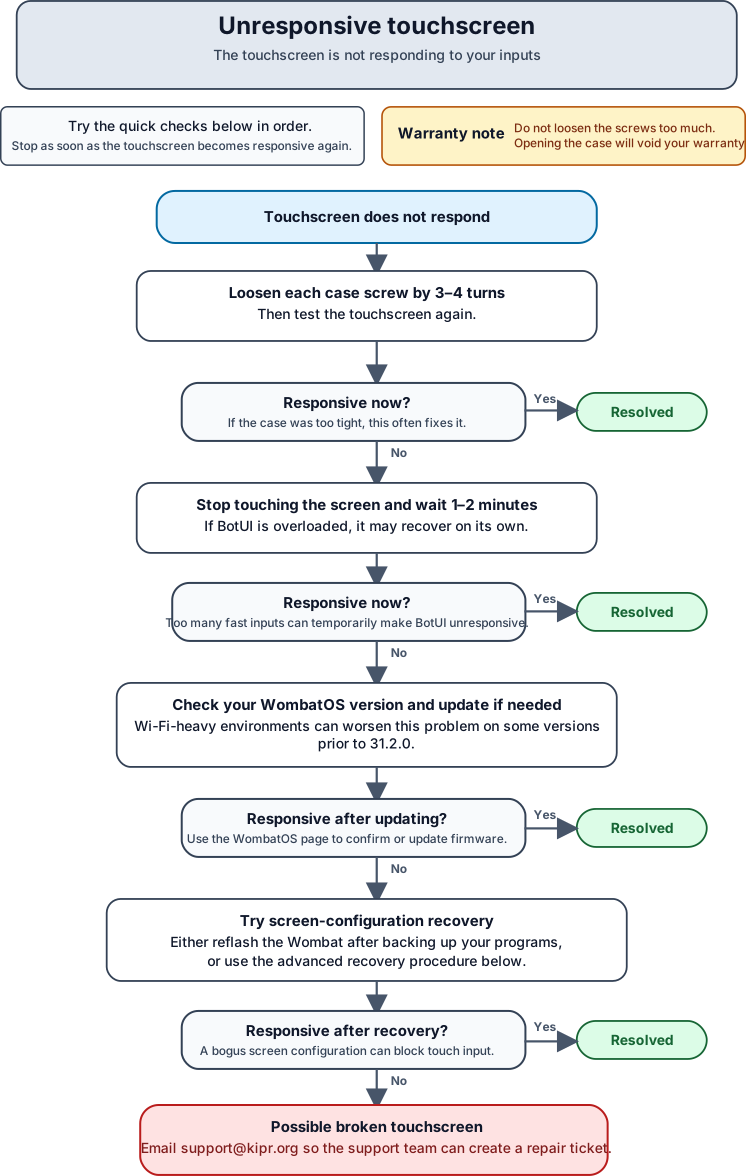
This is a fairly common issue which can have a variety of causes.
Overtightened case
Sometimes, if the top case is too tight, the touchscreen registers the case itself as a touch and becomes unresponsive to user input.
Solution:
Loosen the four case screws by 3-4 turns. Do not loosen them too much as opening the case will void your warranty.
Overloaded Wombat
If it receives too many inputs too fast, BotUI can become overloaded and unresponsive. This is exacerbated on certain versions of WombatOS in areas with a large number of Wi-Fi signals.
Solution:
Stop touching it and wait. If this is the problem, it will eventually sort itself out and become responsive again. You can also check the WombatOS page and confirm that you are running current firmware. The examples on this site currently use WombatOS 31.2.0 as their tested version reference.
Screen configuration
BotUI includes a tool to rotate the screen when your Wombat is mounted upside down or sideways on a robot. Under some circumstances, this tool can create a bogus screen configuration which prevents the touchscreen from registering user input.
Solution 1:
The simplest solution is to back up your programs and reflash the Wombat, as described on the WombatOS page.
Solution 2:
- Connect a mouse and keyboard to the Wombat’s USB ports.
- In BotUI, click Settings > Hide UI.
- In the top left corner, click the terminal icon to open a terminal. This is the icon that looks like a black box with the “>” character on it.
- Type the command below exactly as it appears. It will probably prompt for a password. It will not show anything as you type, this is normal and does not mean it is broken. Type “botball” followed by the “Enter” key.
sudo cp /home/kipr/wombat-os/configFiles/screen_settings/Default/99-calibration.conf /etc/X11/xorg.conf.d/
Broken Screen
In rare cases, the touchscreen itself is broken. In this case, email support@kipr.org so the support team can create a repair ticket.